
Hybrid Events
How to Advance Slides for a Speaker in Another Country
Advance slides for a speaker in another country: setup, what latency to expect and the backup plan if the link drops.
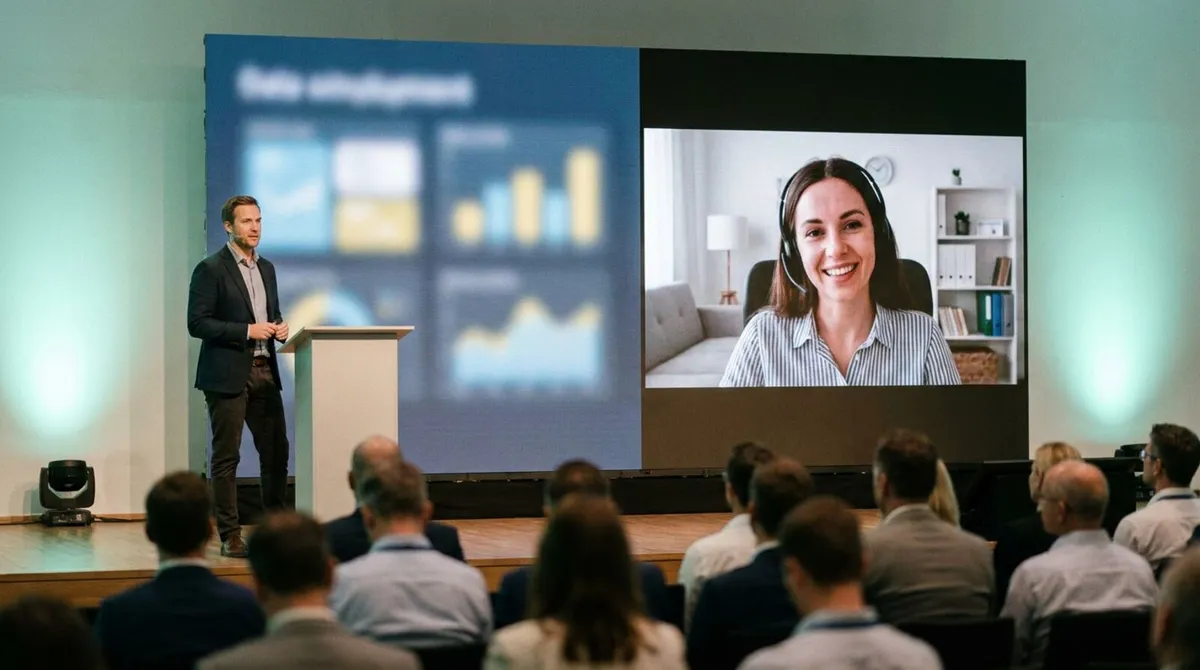
A hybrid event with remote speakers looks simple from the seats: someone appears on the big screen, talks, and the slides move. Getting there without a stall, a frozen frame or an awkward "can you hear me now" takes planning most teams only learn the hard way. This guide covers what actually breaks, and how to set the event up so it does not.
A single-location event has one failure surface: the room. Add a remote speaker and you now have two networks, two sets of hardware, and a handoff between them that has to work live, in front of people, with no do-over.
The three things that most often go wrong are the same across venues:
The remote speaker clicks next, and the room waits a beat too long.
Audio and video that drift apart , or a screen share that never quite catches up to what the speaker is saying.
No fallback when a remote speaker's home internet has a bad five minutes, which it will, eventually.
None of these are exotic problems. They are the normal cost of adding a second location, and every one of them has a known fix.
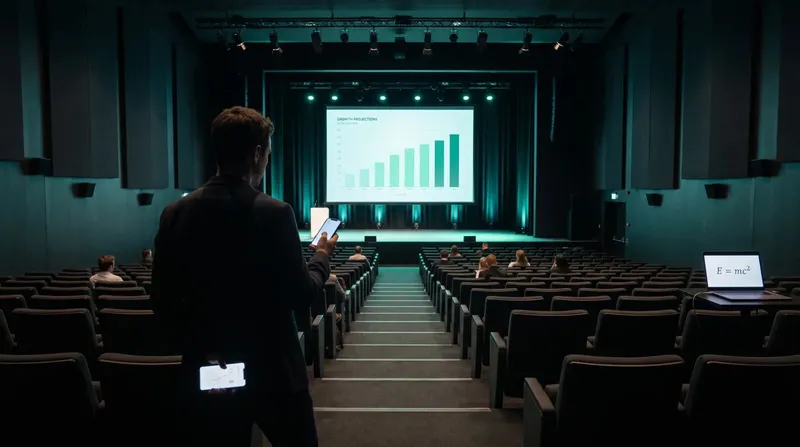
The first design decision is who actually advances the deck: the remote speaker, or someone in the room. Both work, but they solve different problems.
Cliqer supports either model from the same room: the remote speaker gets a link they open in any browser, no app or account needed, and it works whether they are clicking their own deck or you are handing control to someone at the venue.
The computer actually running the slideshow, PowerPoint, Keynote, Google Slides, whatever your speakers use, has to be a real desktop machine at the venue. Cliqer's desktop app for macOS and Windows is what hosts the room and drives the slideshow software; a browser tab can join a room as a presenter or viewer, but it can never host one. That split matters: it is what lets remote speakers join from a phone or laptop with nothing to install, while the deck itself runs on dedicated hardware you control.
Once the host machine is set up:
For the full walkthrough, see how to use Cliqer.
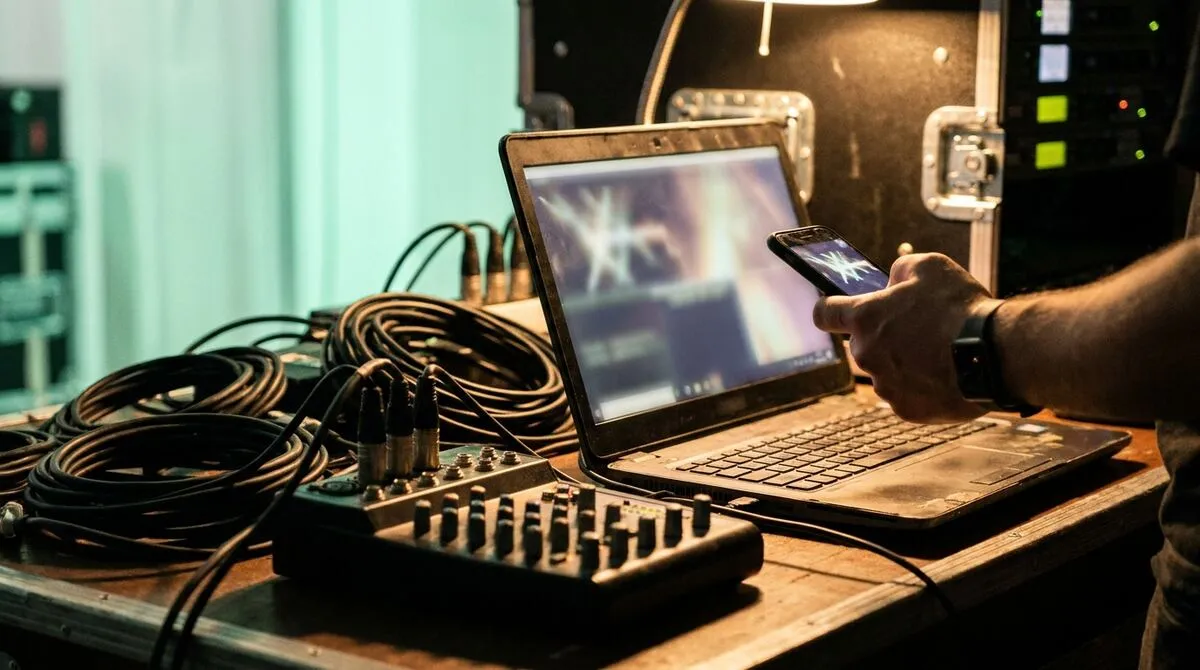
Remote speakers connect over whatever network they happen to have that day: home Wi-Fi, a hotel connection, conference venue Wi-Fi shared with a thousand other laptops. Some of that will be unreliable, and your plan needs to assume it.
Cliqer's connections try a direct peer-to-peer path first and fall back to an encrypted relay automatically when a firewall blocks the direct route, including relaying over port 443 on locked-down corporate networks. That fallback is what keeps a remote speaker's slides moving even from behind restrictive hotel or office Wi-Fi. Read more on how that routing works in TURN servers explained and corporate firewalls and presentation tools.
Beyond the network layer, have a human backup too:
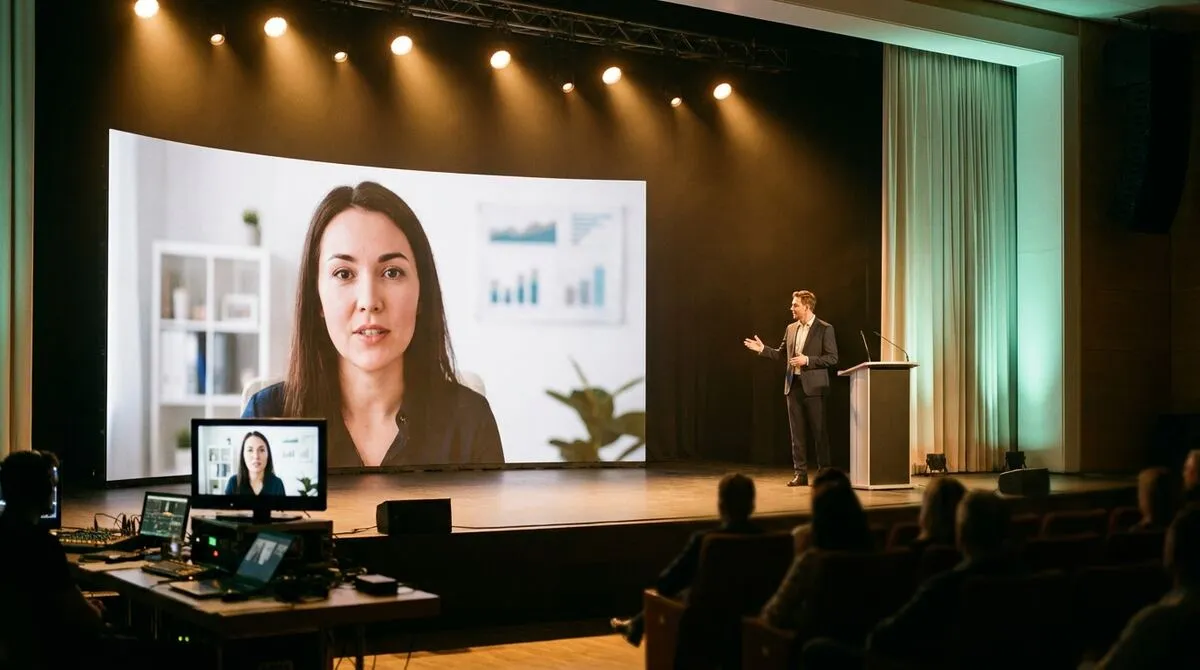
Slide control is only half of a hybrid segment. Most events also want the remote speaker's face and voice on the main screen, ideally without asking them to install a broadcast app.
Cliqer's Studio, built into the desktop app, turns remote guests into a video input you can stage and cut live: invite a speaker already in your room onto a call, their camera lands on your rack, and you route it to the room, to NDI for your production switcher, or both. See Studio in the docs, bringing remote guests on stage with live callers for the full walkthrough, and the hybrid event tech stack for how this fits with the rest of your gear.
| Setup | Slide control | Speaker video | Best for |
|---|---|---|---|
| Speaker clicks own slides, no video | Remote speaker, via Cliqer link | None, audio only or pre-recorded | Panel with a remote voice, low production budget |
| Speaker clicks own slides, video via Studio | Remote speaker | Live, routed to room and NDI | Keynote-style remote speaker on the main screen |
| Operator clicks slides, speaker on video call | On-site operator | Live, from meeting platform screen share | Tightly cued runs of show, less experienced speakers |
The part that actually fails at hybrid events is rarely the speaker's content. It is the fifteen seconds around the handoff: introducing the remote speaker, getting their video and slides live at the same moment, and cutting back to the room afterwards. Rehearse that transition specifically, with the actual gear, not a stand-in laptop.
A short pre-show checklist helps more than a long one people skip. See the pre-show presentation checklist for a version built for exactly this kind of run-through.
No. Hosting, the machine that actually runs and drives the slideshow, has to be a desktop app on macOS or Windows. A remote speaker joins as a presenter from any browser, on a phone, tablet or laptop, with no install and no account, and controls the slides that are running on the host machine at the venue.
No. Presenters and viewers join with a room link or QR code and nothing else. Only the machine hosting the room needs the Cliqer desktop app and a license.
The connection tries to re-establish automatically, and Cliqer's fallback routing handles most restrictive networks without you doing anything. For total outages, have a phone backup and, if the moment calls for it, a local operator ready to advance slides manually while the speaker dials back in.
Only one presenter controls the deck's clicks at a time in a given room, but multiple hosts can run synchronised copies of the same deck across locations. See multi-host presentations for how that setup works for panels and multi-room events.
If you are running your first hybrid event with remote speakers, start with Cliqer's free plan: it covers screen sharing, the timer and one room, so you can rehearse the exact flow before the real thing. When you need callers, multi-host backup or the full toolkit, compare plans on pricing or look at the remote clicker feature for the presenter side of the setup.
Branded Presenter Rooms: Custom Domains and Logos for Agencies
How AV and event agencies run white label presenter rooms on their own domain, with their own logo, for every client.
How to Use Speaker Notes Without Staring at Your Laptop
Use speaker notes on stage without breaking eye contact, from presenter view basics to phone prompts that go with you.
Keep reading
Practical guides for presenters, AV crews and event teams, plus the Cliqer releases that matter. No spam, one click to leave.