
Clickers & Remotes
Remote Control for Prezi and LibreOffice Impress
How to set up reliable remote control for Prezi’s zooming canvas and LibreOffice Impress, from any phone in the room.
Google Slides is the odd one out among presentation software: it runs in a browser tab rather than as a standalone application, which changes how a google slides clicker actually has to work. A clicker built for desktop apps like PowerPoint cannot just assume focus the same way, it has to find the right browser tab first, among however many other tabs happen to be open. Here is how that works and how to set it up properly.
PowerPoint and Keynote are native applications with direct APIs a clicker can hook into. Google Slides is a web page, which means control has to happen at the browser level, either by simulating keystrokes into the right tab or by talking to the page directly through a browser extension.
Cliqer supports both, with native browser automation as the default and an optional extension for a smoother experience. Full technical detail lives in our Google Slides docs, this post covers the practical side of getting it running.
Cliqer uses Windows Script Host to detect running browsers, locate the window showing Google Slides by its title, activate it, and send the keyboard shortcut for next or previous slide, then it is done. This works across Chrome, Edge, Firefox, Brave, Opera and Vivaldi.
Cliqer uses AppleScript to search open browser tabs for a docs.google.com/presentation URL, activate the matching tab, send the key event, then return focus to whatever application you were using before. This works across Arc, Chrome, Safari and Edge.
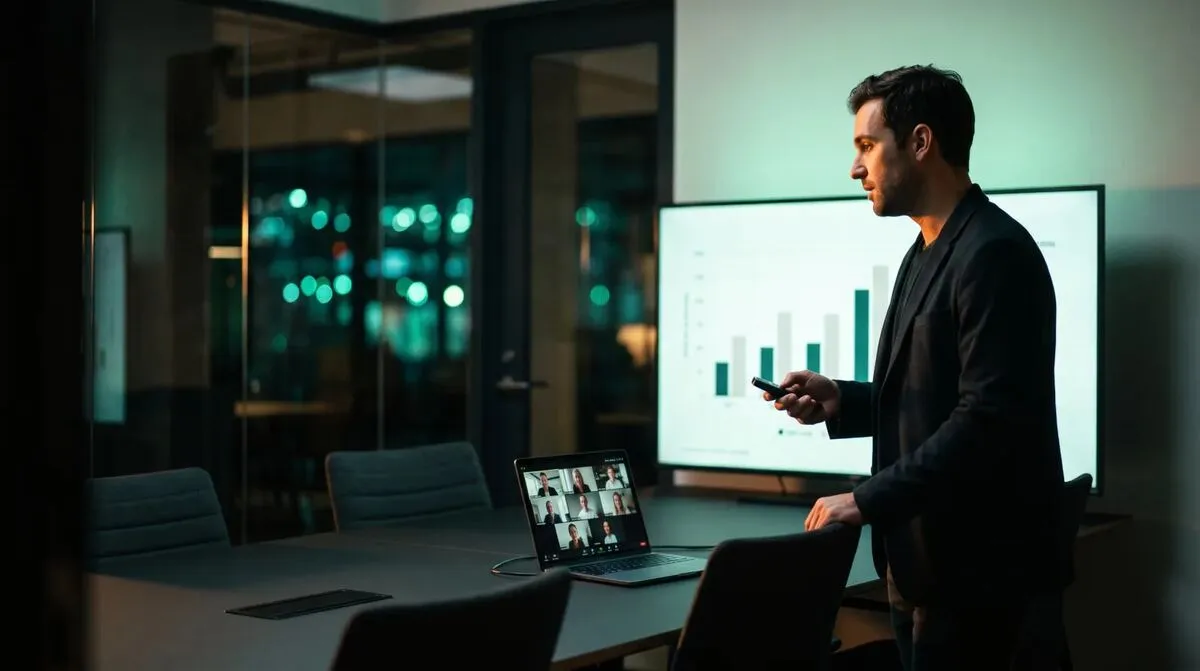
For a smoother experience with no visible focus switching, Cliqer offers an optional browser extension. Installing it unlocks:
No window activation
Slides advance without the visible tab-switch flash.
Speaker notes on your device
View your notes on the presenter screen rather than only on the host laptop.
Slide position awareness
Your remote knows which slide is currently showing.
Cliqer prompts you to install the extension when you select Google Slides in settings, and keeps it updated automatically alongside app updates.
You do not have to be in full presentation mode for Cliqer to control Google Slides, it works in edit mode too, since detection is based on the tab's URL rather than a specific fullscreen state. That is handy for rehearsals, where you want to click through a deck without going fullscreen every time you check timing, or for training sessions where you narrate through slides while leaving comments visible to a co-presenter watching the same screen.
If more than one person needs to control the same Google Slides deck, for example handing off between speakers on a panel, each presenter connects with their own device to the same Cliqer room. There is no limit on how many people can hold a link, only on how many should be actively clicking at once. For a fuller look at coordinating multiple speakers on one deck, see multi-host presentations.
| Problem | Likely cause | Fix |
|---|---|---|
| "No Google Slides presentation found" | Tab not open or wrong URL pattern | Confirm the tab shows a docs.google.com/presentation URL and refresh it |
| Slides not advancing (Windows) | Window minimized or lost keyboard focus | Click the presentation window once, check app logs for detection |
| Slides not advancing (macOS) | Missing Accessibility permission | Grant Accessibility to Cliqer in System Settings, refresh the tab |
| Extension installed but still prompted | Extension version too old | Remove the old extension, reinstall from Cliqer settings |
| Only one host connects on shared computer | Browser extension is single-instance per machine | Run each host on its own machine for multi-host setups |
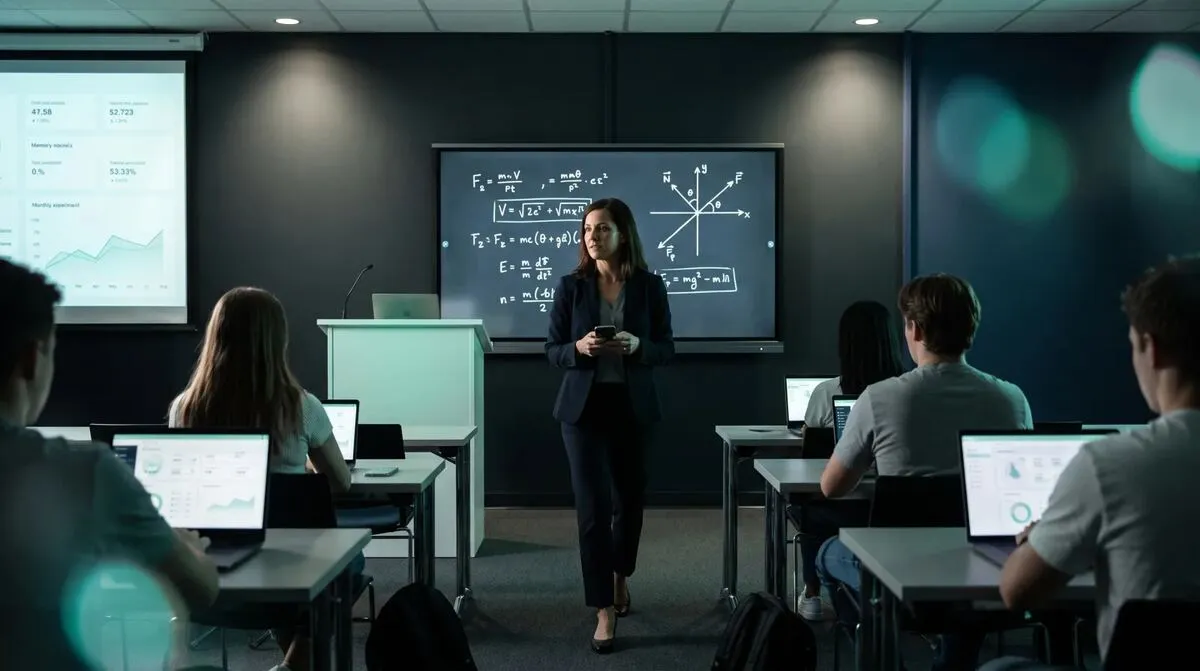
The end result looks the same to your audience, slides advance when you tap next, but the mechanism underneath is genuinely different from controlling PowerPoint or controlling Keynote, both of which talk to a native desktop app rather than a browser tab. If your team presents across a mix of software, that difference is invisible from the presenter's side, the same phone and the same link work regardless of which one is running underneath. For the bigger picture on why internet-based control handles all of this consistently, see what is an internet clicker, and for a full rundown of every option out there, hardware, phone or internet: presentation clickers compared.
No, native browser automation works without it. The extension is optional and mainly removes the brief focus flash and adds speaker notes on your device.
Chrome, Edge, Firefox, Brave, Opera and Vivaldi on Windows. Arc, Chrome, Safari and Edge on macOS.
Yes, the same native control works while you screen share the browser tab in a video call, more detail in using a presenter remote in Zoom and Microsoft Teams.
That is the native macOS method activating the tab to send the key event, then returning focus to your previous app. Installing the browser extension removes this entirely.
Cliqer looks for the tab actively in presentation mode, or the most recently active tab matching the Slides URL pattern if none are in presentation mode. Closing unrelated Slides tabs before you present avoids any ambiguity.
Yes, just change the active software in the Cliqer app settings. The presenter-side link and device connections stay the same, only the target application changes.
Whether you use native automation or the extension, Cliqer's Google Slides support is free to try. Install it from the download page, or check the pricing page if you already know you want the full toolkit including screen share, timer and laser pointer alongside your clicker.
Why Rental and Staging Companies Are Moving Show Control to Software
Why rental and staging companies are swapping clicker fleets for software show control that travels light to any venue.
Co-Presenting Without Chaos: Smooth Handoffs Between Speakers
Co-presenting tips for clean handoffs: agree cues in advance and pass slide control without dead air or fumbling.
Keep reading
Practical guides for presenters, AV crews and event teams, plus the Cliqer releases that matter. No spam, one click to leave.